In the Dealer Promo Tool, you have the ability to create reports that are relevant and meaningful to you and pin them to your dashboard, making them easily accessible every time you log in. Each user can customize their own dashboard with their own reports, so you only have to see the reports and data that YOU care about.
Here's a quick step-by-step showing you how to save and pin a report.
Save and pin a report to your dashboard
1. Click "Report Recipes"

2. Build your report. In this example, we'll use "Users who entered a contest", but the same steps apply regardless of which report recipe you use.

3. Once you've created your report, go ahead and click "Run Report".

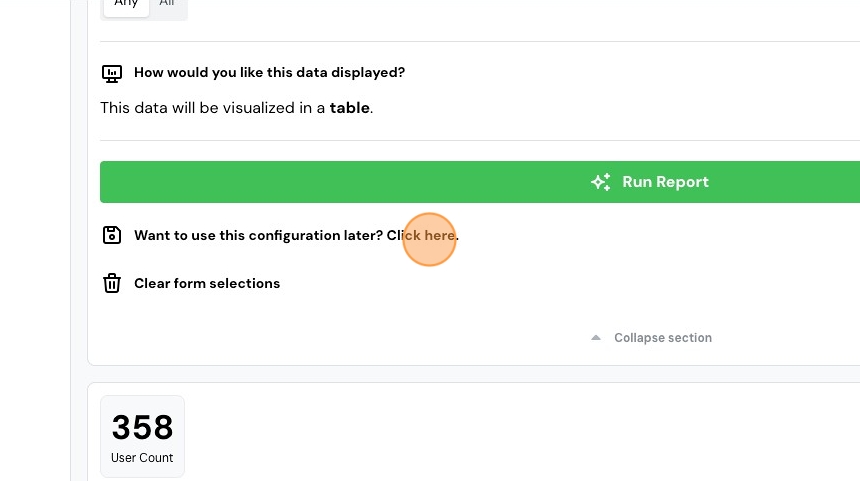
4. In order to pin it to our dashboard, we first need to save it. Click "Want to use this configuration later? Click here."
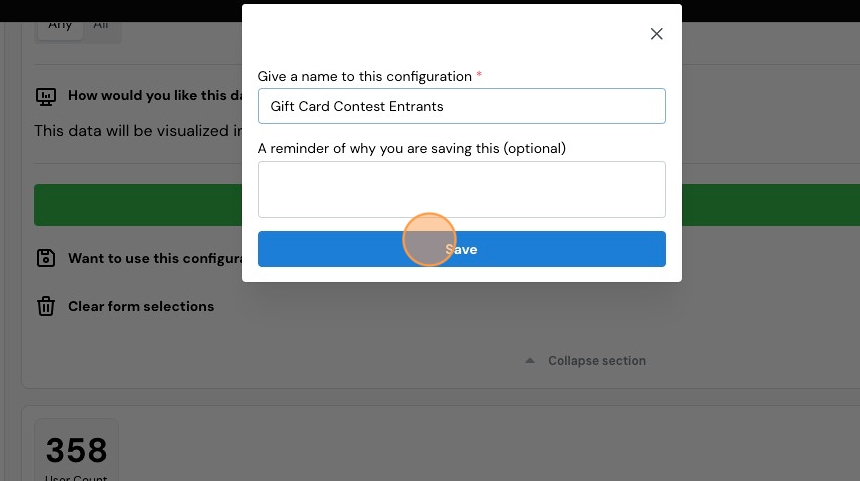
5. Name it, and optionally add a description. Click "Save"
6. Now, scroll up and click the "Saved" tab.

7. You should see the report you just saved. Click the green "View" button.

8. Now, click the "Pins" tab.

9. Click "Pin to dashboard"

10. That's it! Return to your dashboard and you should see the newly pinned report. Select it any time you need to view it.

11. You'll always need to click "Run Report" when you view it, simply because the data set may have changed.

Comments
0 comments
Please sign in to leave a comment.