How you can see customer details, including membership, total miles, REV score, associated VINs, milestones achieved and more.
1. From your dashboard, navigate to the ride challenge effort. In this case, we'll click "Let's Ride Challenge™ Ride For Heroes"

2. Click the "Management" tab.

3. On this screen, you'll see a list of all of your registered customers.

4. Note the "Registered" column. A "yes" in this column means that they filled out the registration form.

5. Note the "Entered" column. A "Yes" in this column means they associated a VIN to their profile and have a validated odometer reading.
If you see a "No" in this column, the customer registered but did NOT get a VIN or mileage reading validated.

6. Click a customer's name to open additional information.

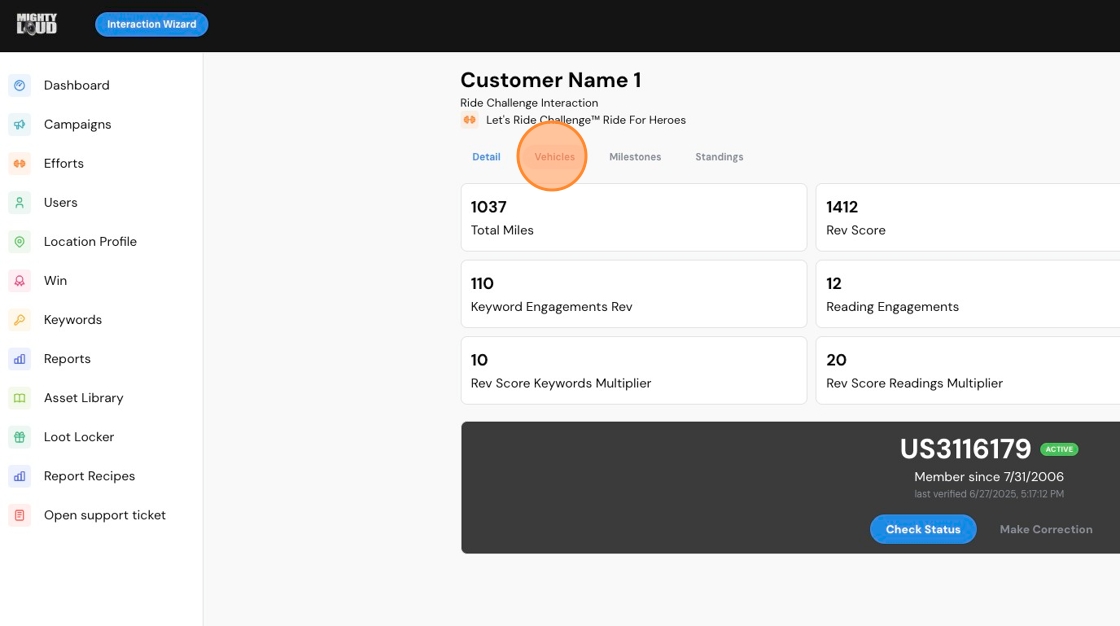
7. On this screen, you'll see some rollup data, including their total miles, REV score, and number of various types of engagement.

8. You'll also see their Membership ID number if they have added one.

9. Click the "Vehicles" tab to see their VIN(s) and associated mileage readings.
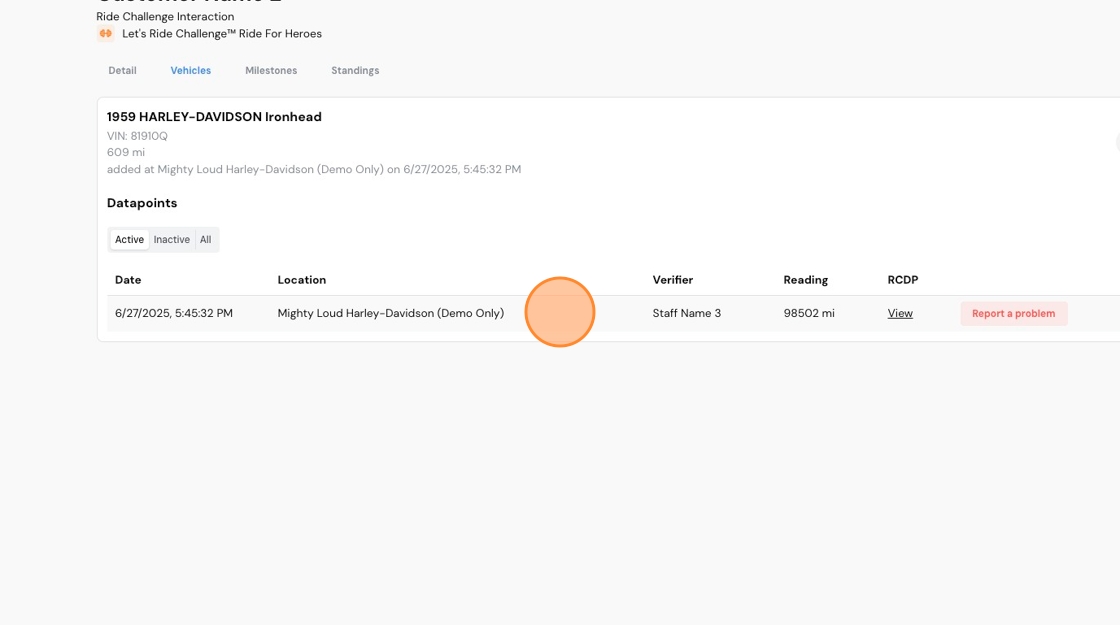
10. Note the down-arrow to the far-right of any listed VINs. Click to expand the detail.

11. You'll see a list of all validated mileage readings for that particular VIN. You can also see who the validator was that helped them.
12. If needed, you can open a support ticket by clicking "Report a problem"
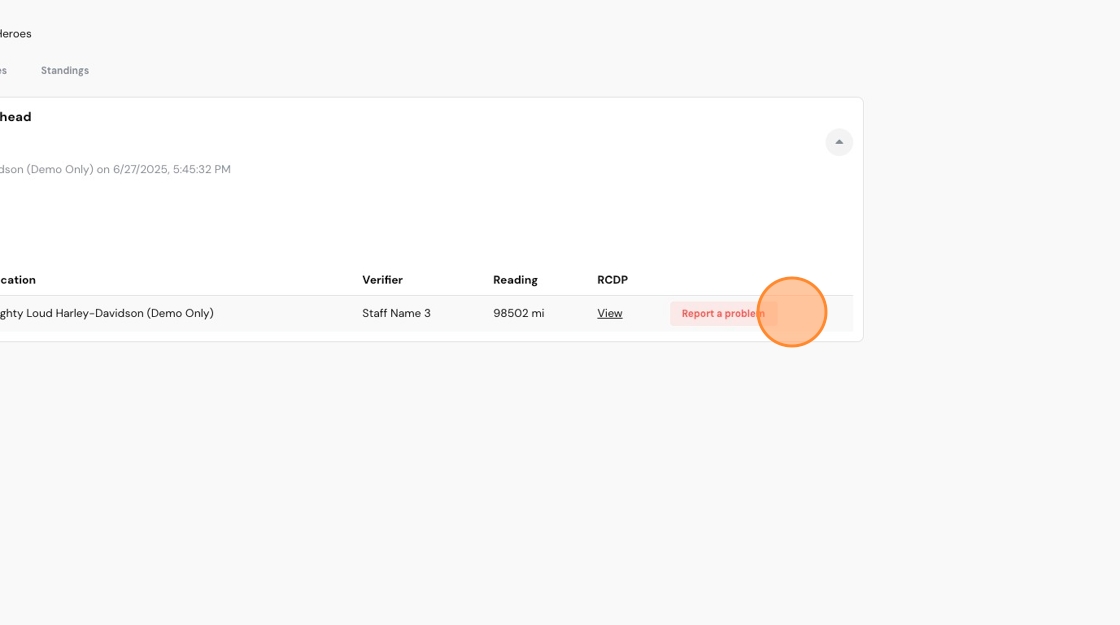
13. Type a brief description of the issue and click "Send".

14. Click "Milestones" to see the customer's progress in achieving the various milestone rewards.

15. Any milestone still grayed-out is not yet achieved.

16. Milestones that are highlighted, like the one below, have been achieved. If a customer has already claimed the associated physical reward, you will not see the "claim now" button below the milestone.

17. Click "Standings" to view the customer's overall progress.

18. Here you'll see the tier in which they're currently competing, total miles, total REV score, and more.

Comments
0 comments
Please sign in to leave a comment.