It's always a good idea to add prize items to your Loot Locker before you start building your sweepstakes. But if you forget, don't worry. There's an easy way to add it as you go.
Below are the steps. The scenario is this - you're using the Interaction Wizard to create a sweepstakes and have chosen to add a new contest (rather than use an existing contest). You reach the step where you are building the prize and attaching Loot Locker items, but the item you need isn't available.
1. Click the ellipsis menu to add Loot Items to your prize.

2. Click "manage loot items"

3. Open your Loot Locker by clicking the link.

4. The Loot Locker opens in a new tab. Type the name and retail value and then click "Save."

5. Click the newly created Loot item.

6. Add photos to the item.

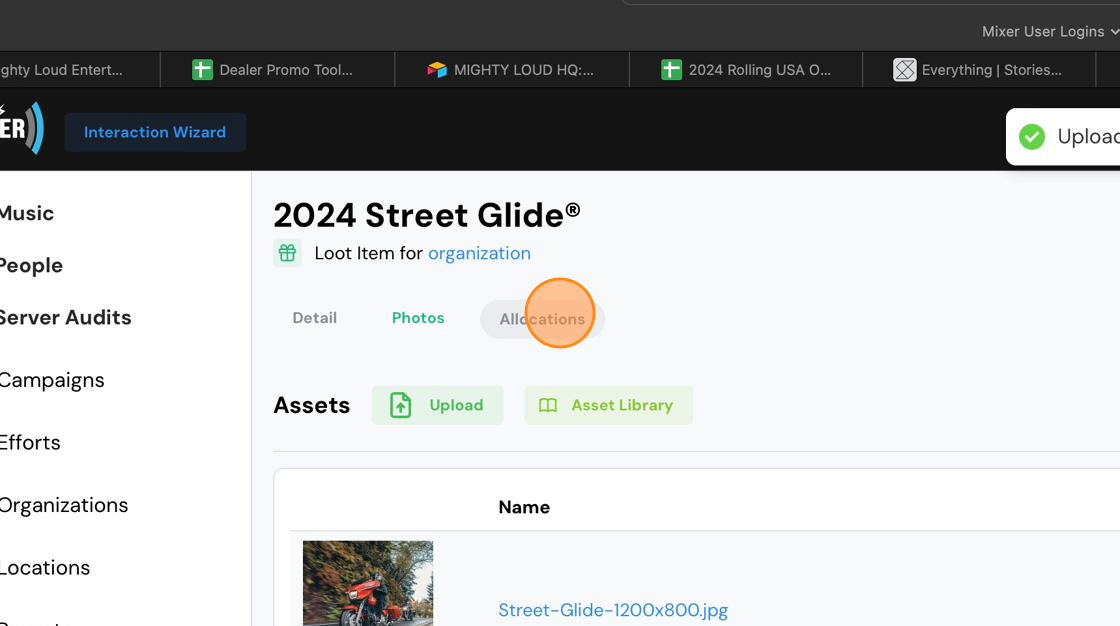
7. Click the "Allocations" tab to set the available inventory.
8. Use the +/- buttons or the keyboard icon to adjust the quantity.

9. Click "Save"

10. Close the tab and return to the previous tab.
11. Click "refresh loot locker"

12. You should now see the newly-added item. Add it and continue the process of building your sweepstakes.
Comments
0 comments
Please sign in to leave a comment.