The following tutorial explains how to create and attach a local, dealership contest to a larger National or regional sweepstakes.
1. Open the Interaction Wizard.

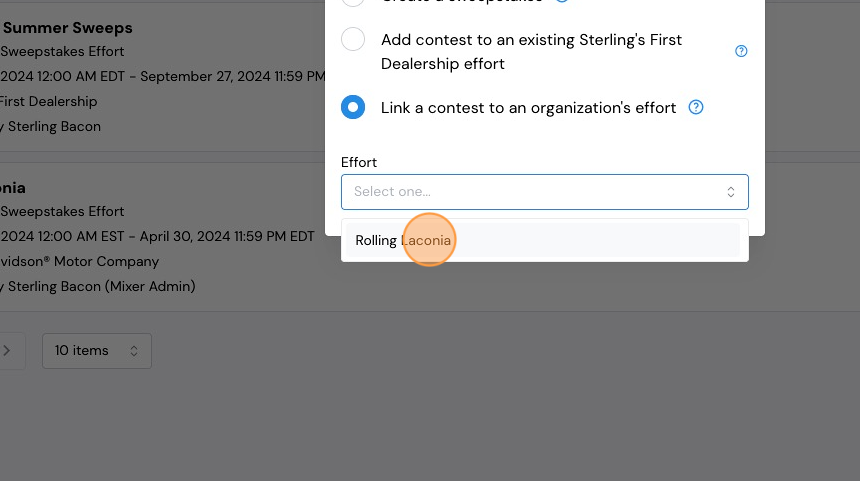
2. Choose the 3rd option - Link a contest to an organization's effort.

3. Select the existing organization effort.
4. Select "Create a new sweepstakes".

5. Type the name of the contest and click submit.

6. Set the start and end dates and times for the contest and click "Save."

7. Set Keyword values. This first value determines how many entries a single keyword gives your customer? Often, this will be 1. Click Save.

8. Set the Total Entries allowed by Keywords. How many possible, total entries can a customer earn just by submitting keywords?
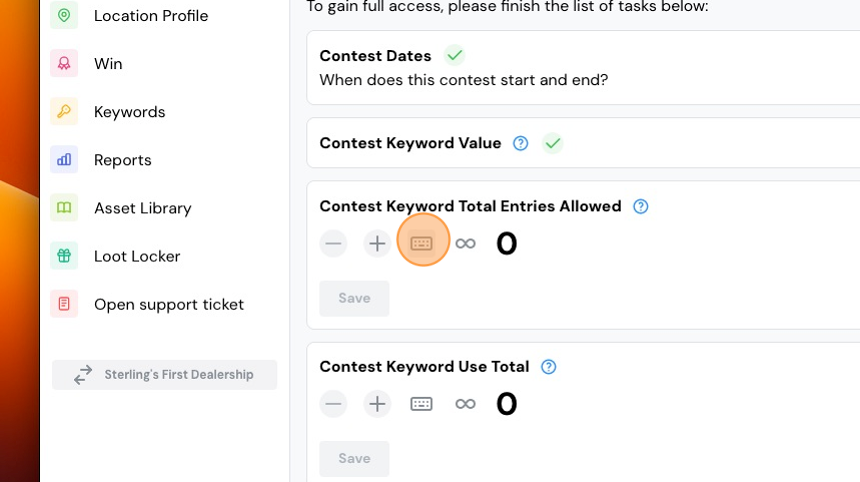
9. How many times can a customer use any given keyword? Often, this will be 1.

10. Set the Initial Entry. How many entries can a customer receive just for registering?

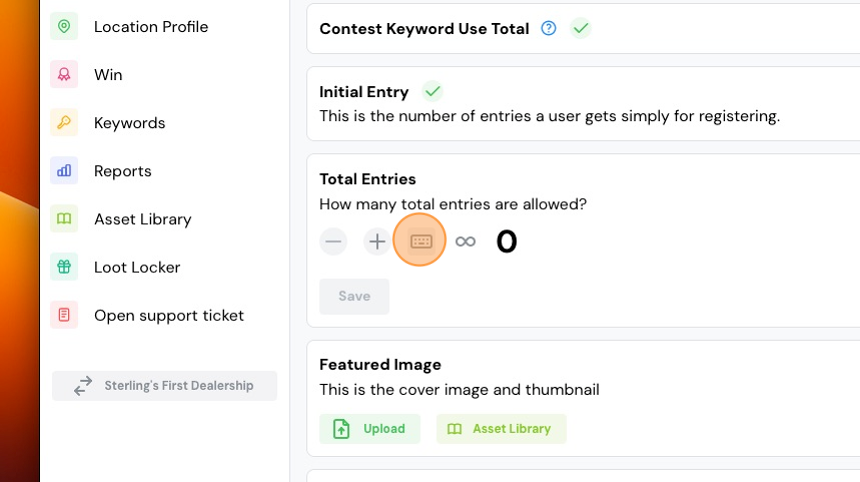
11. Set the total number of possible entries. This number determines how high the speedometer on the customer's dashboard will go.
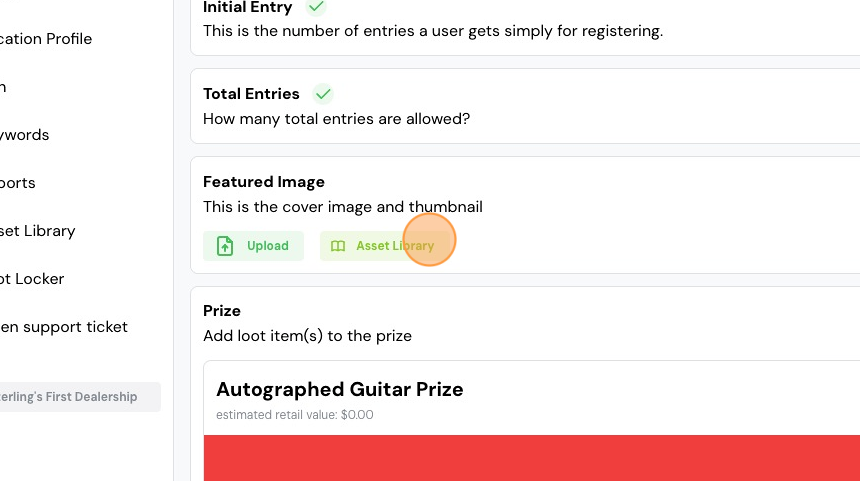
12. Add an image, either by uploading or choosing an image from your Image Library.
13. Click the ellipsis menu (the three dots) near the bottom left, and click "manage loot items." This is where we add the items you're giving away.
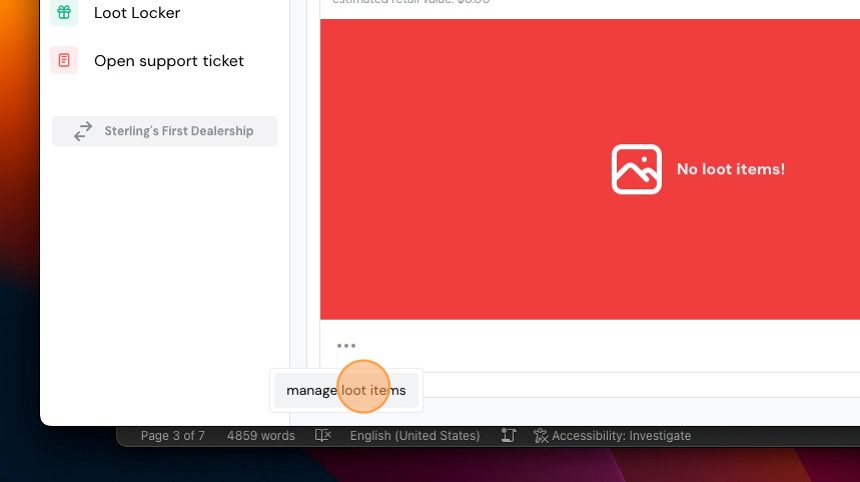
14. Select the item you want to give away.

15. Click "Add Items" and then close the Loot Locker window.

16. Turn your contest ON.

17. Add existing keywords or create new keywords for your contest.

18. If you're creating a new keyword, type the keyword, set the start and end dates and times for the keyword, and click "Add Keyword".

19. Be sure you turn your keyword ON.
Comments
0 comments
Please sign in to leave a comment.