If you have in-dealership contests that you need to connect to a larger national or regional sweeps, connect them with keywords. Here's how:
1. Click "Win" in the left-hand navigation bar.

2. Select the contest for which you want to create the keyword.
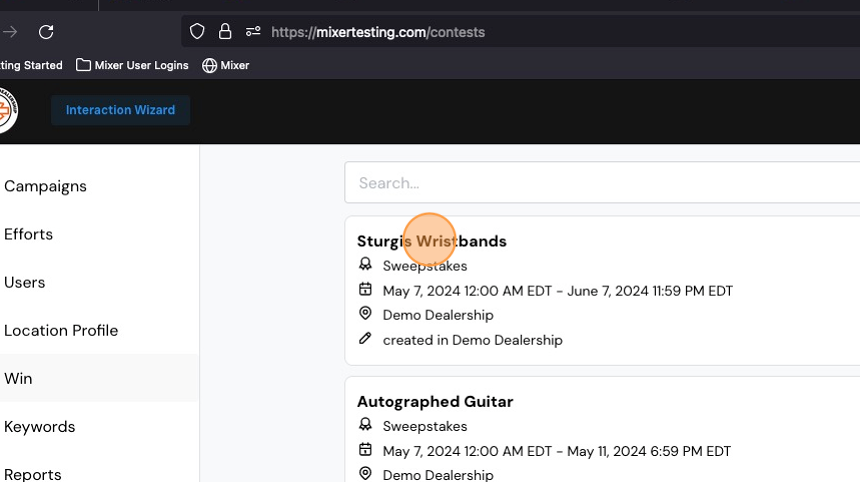
3. Click the "Outside Efforts" tab.

4. Choose the appropriate outside effort. In this example, it's Rolling Milwaukee.

5. Click "Create Keyword"

6. Type your keyword.

7. Set the start date and time, and end date and time.
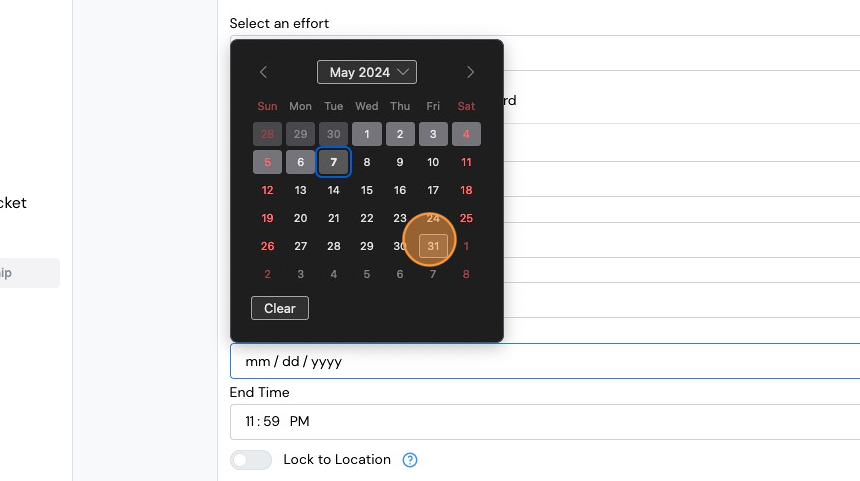
8. Click "Add Keyword"

9. Turn the keyword ON by clicking the toggle switch next to it. Repeat those steps to add additional keywords.

10. Optionally, you can also attach the keyword(s) you just created to other prizes. There are two ways to do it. One way is prize-by-prize. Return to your Win tab.

11. Click the next contest you want to attach to the keyword.

12. Click the Outside Efforts tab.

13. Select the Effort.

14. You'll see the keyword you just created. To the far right, you'll see a plus sign. To add the keyword to this contest, just click it.

15. The second way to add keywords to other contests is in bulk. Click the "Keywords" tab in the left-hand navigation bar.

16. Select the keyword.

17. Turn Quick Settings to OFF.

18. Click the "Contests" tab.

19. On the right, under "Available Contests", you'll see a list of any contests that are not currently attached to this keyword.

20. Select any contest you want to attach, and then use the arrow button to move it from the "Available Contests" column to the "Current Contests" column. Or, use the double-arrows to move ALL available contests to the current contests column.

Comments
0 comments
Please sign in to leave a comment.